
Get started on ilm
Six steps, about 5 minutes. After that, your classes, recordings and fees are all in one place.
-
Create your account
Open the Register page. Enter your full name, choose a Student ID, then add your WhatsApp number and a password. Tick the agreement, then tap Register.
Remember your Student ID. You log in with it, not an email.
Open the Register page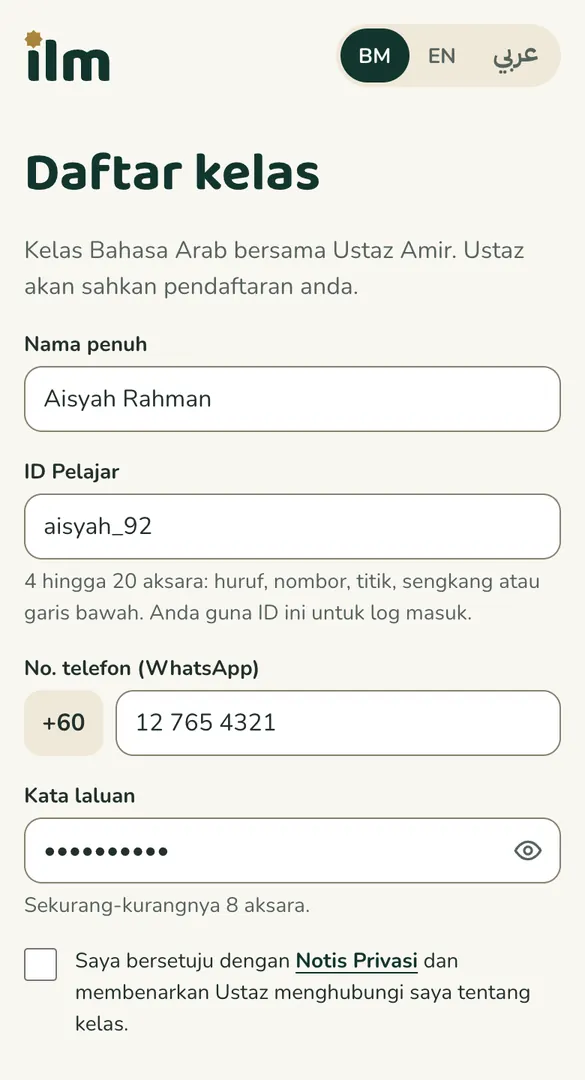
-
Wait for Cikgu to confirm
Cikgu will confirm your registration. You can log in now: the Home screen shows Awaiting confirmation until your account is active.
-
Add ilm to your Home Screen
ilm then opens like a normal app. On iPhone, you need this step to get notifications.
- Open ilm in Safari.
- Tap the Share icon at the bottom of the screen
- Choose Add to Home Screen, then Add.
- Open ilm in Chrome.
- Tap the menu at the top right
- Choose Install app or Add to Home screen.
ilm is already installed on this phone.
Came from TikTok? Pages inside TikTok can't be added to the Home Screen. Tap ⋯ at the top right and choose Open in browser first.
-
Turn on notifications
Open ilm from your Home Screen. When ilm asks, tap Allow. You'll get a reminder an hour before class, a notification when Cikgu goes live on TikTok, and fee reminders.
-
Pay your fee
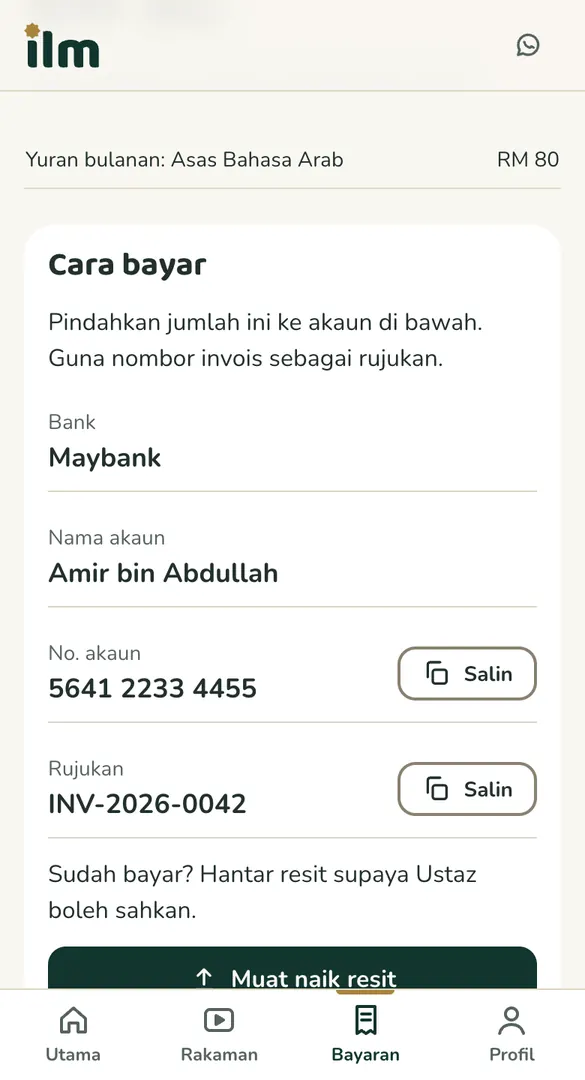
Open Payments and choose the invoice. Transfer the amount to the account shown, with the invoice number as the reference.
Then tap Upload receipt and choose the receipt photo. The status changes to Being checked, then Paid once Cikgu confirms it.
-
Join class, watch recordings
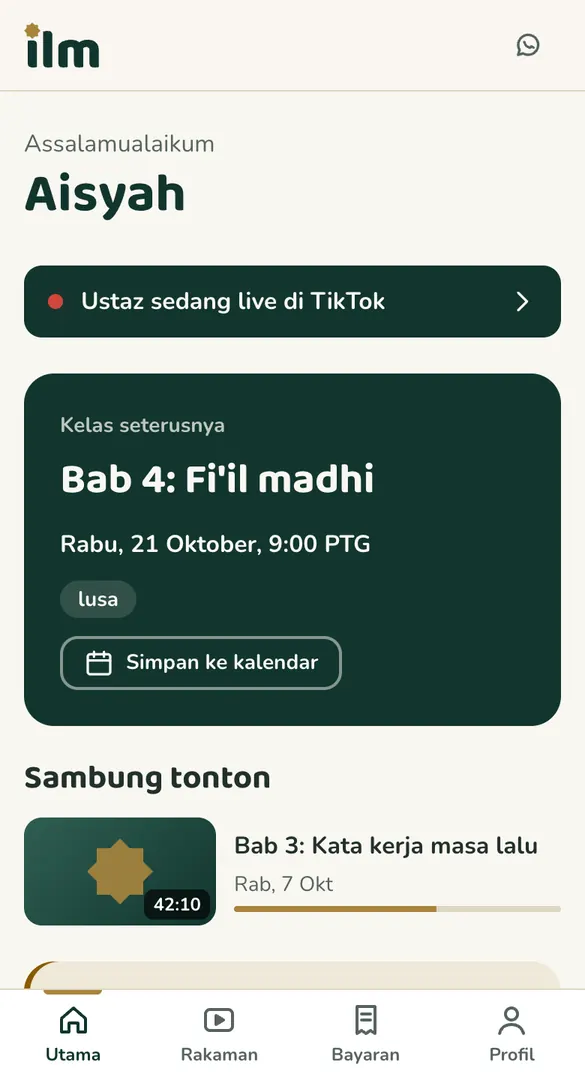
The Home screen shows your next class. The Join class button appears 30 minutes before it starts.
Missed a class? Every class is recorded. Watch it again in Recordings and pick up where you stopped.
Stuck?
- Forgot your password
- WhatsApp Cikgu. You'll get a temporary password, then choose a new one after you log in.
- ID already taken
- Choose another, for example add a number: aisyah_92.
- Recordings locked
- Your fee is overdue. Pay and upload the receipt; recordings unlock as soon as Cikgu confirms it.